


DNS (the Domain Name System) translates a domain name such as example.com into the IP address of the server that hosts your website. For a website owner, DNS is the set of records stored at your domain’s nameservers that tell the internet where your site and your email live. When you point a domain at a new host, change a record, or switch nameservers, you are editing DNS, and the change takes time to spread across the internet. This guide explains how DNS works, which records matter, how propagation works, and how to change nameservers at your host.
DNS at a Glance
- What it does: turns domain names into IP addresses so browsers can find your website.
- Where your settings live: at your domain’s authoritative nameservers, usually at your registrar or web host.
- Records you will meet most: A, AAAA, CNAME, MX, TXT, and NS.
- Propagation time: record changes can show up in minutes to a few hours, while nameserver changes can take 24 to 48 hours.
- Two different things: your website’s DNS records (managed at your host) and the DNS resolver your device uses to look things up (which you can change on your own device).
What Is DNS?
DNS stands for Domain Name System. It works like the internet’s phone book: people remember names such as hosting-review.com, but computers connect to numeric IP addresses. DNS looks up the name and returns the address. The core DNS standards, RFC 1034 and RFC 1035, were published in 1987 and were written by computer scientist Paul Mockapetris, and the system has been a foundation of the internet ever since.
Without DNS you would have to type a string of numbers to visit every site. For a website owner, DNS also decides where your visitors and your email go, which is why a wrong record can take a site or a mailbox offline. If you are just getting started, our guide on how to build a website covers the bigger picture.
How Does DNS Work Step by Step?
When someone types www.hosting-review.com into a browser, a short chain of lookups runs, usually in a fraction of a second:
- The browser asks a DNS resolver (often run by the visitor’s internet provider) for the site’s address. If the resolver has the answer cached, it replies immediately.
- If not, the resolver asks a root name server, which points it to the servers for the top-level domain, in this case .com.
- The resolver asks the top-level domain (TLD) server for .com, which replies with the authoritative nameservers for the domain.
- The resolver asks the authoritative nameserver for the record for www.hosting-review.com.
- The authoritative nameserver returns the IP address stored in the domain’s A record.
- The resolver saves (caches) the answer for the length of the record’s TTL, so repeat visits are faster.
- The resolver returns the IP address to the browser, which connects to the web server and loads the page.
| Server type | Role | Who runs it |
|---|---|---|
| Recursive resolver | Does the lookup work on your behalf and caches answers | Your internet provider, or a public service such as Google or Cloudflare |
| Root name server | Points resolvers to the right TLD servers | Root server operators; there are 13 root server identities (A to M) |
| TLD name server | Knows which nameservers handle each domain under .com, .org, and so on | The registry for each TLD |
| Authoritative name server | Holds the actual DNS records for your domain | Your registrar, web host, or a DNS service you choose |
The 13 root server identities are served by many machines spread around the world. The root server operators’ site (root-servers.org) listed 1,843 instances as of April 2024.
What Is a Root Domain?
Two different things share the word “root.” The DNS root is the top of the DNS hierarchy, above .com and .org. A root domain (also called an apex domain) is simply your main domain name, such as example.com, as opposed to a subdomain such as blog.example.com. When your host asks you to set a record on the “root,” it means the bare domain.
DNS Records Every Website Owner Should Know
A DNS record is an instruction stored at your authoritative nameserver. Each record has a type, a name, a value, and a TTL (time to live), which tells resolvers how long they may cache the answer. These are the types you will meet most often:
| Record | What it does | Example |
|---|---|---|
| A | Points a name to an IPv4 address | example.com → 203.0.113.10 |
| AAAA | Points a name to an IPv6 address | example.com → 2001:db8::10 |
| CNAME | Points one name to another name instead of an IP address | www.example.com → example.com |
| MX | Directs email for the domain to a mail server | example.com → mail.provider.com (priority 10) |
| TXT | Stores text, often used for domain verification and email security (SPF, DKIM, DMARC) | v=spf1 include:provider-spf-domain ~all |
| NS | Names the authoritative nameservers for the domain | ns1.yourhost.com |
| SOA | Stores administrative details about the domain’s DNS zone | Created automatically by your DNS provider |
The addresses above are documentation examples, not real servers. For website owners, the A record (and AAAA, if you use IPv6) sends visitors to your web server, and the MX and TXT records handle email. Our guide to setting up email hosting walks through the MX, SPF, DKIM, and DMARC records step by step.
Common DNS Mistakes
- Editing the wrong record: changing an A record when you only meant to add an MX record can take your site offline.
- Leaving old records behind: a leftover MX record can send email to a previous provider.
- Using a CNAME on the bare domain: most DNS providers don’t allow a CNAME on the root domain. Use an A record there, and a CNAME for www.
- Forgetting the www version: if www.example.com has no record, some visitors will see an error.
How to Change Nameservers at Your Host
Nameservers decide which company controls your domain’s DNS records. If you change them, every record (website, email, and verification records) must exist at the new location. Typical reasons to change them are moving your site to a new web host or using a DNS service such as Cloudflare.
- Get the new nameservers. Your new host or DNS service lists them in its welcome email or control panel, usually as two or more names such as
ns1.newhost.comandns2.newhost.com. - Recreate your records first. Add your A, CNAME, MX, and TXT records at the new provider before you switch, so your site and email keep working during the change.
- Log in where your domain is registered. This is your registrar, which may be a different company from your web host.
- Find the nameserver settings. Look for “Nameservers,” “DNS,” or “Domain settings” under your domain, then choose the custom nameserver option.
- Replace the old nameservers with the new ones and save. Remove old entries so only the new set remains.
- Wait and check. Nameserver changes can take 24 to 48 hours to spread worldwide. Check your site and send a test email from another account.
If you registered your domain with the same company that hosts your website, the nameservers are often set for you. Compare hosts that make this easy in our top ten list of web hosts, or read our HostPapa and Namecheap reviews to see how those companies handle domains and DNS.
What Is DNS Propagation and How Long Does It Take?
DNS propagation is the time it takes for a DNS change to reach resolvers around the world. DNS has no single “update” button. Each resolver keeps its own cached copy of your records until the TTL runs out, so some visitors see the new version before others.
- Record changes (such as editing an A record) often appear within minutes, but can take up to about 8 hours.
- Nameserver changes can take 24 to 48 hours to propagate globally.
- Your TTL matters. A long TTL means a long wait. If you plan a move, lower the TTL on your records a day or two beforehand, then raise it again afterward.
How to Check and Speed Up a DNS Change
- Use a free DNS lookup or propagation checker to see which answer different locations return.
- Clear your computer’s DNS cache. On Windows, open Command Prompt as administrator and run
ipconfig /flushdns. On macOS, runsudo dscacheutil -flushcache; sudo killall -HUP mDNSResponderin Terminal. - Restart your browser, or test from a phone on mobile data, which uses a different resolver.
Should You Change the DNS Resolver on Your Device?
This is a separate question from your website’s DNS records. Your device (or your router) uses a DNS resolver to look up every site you visit. By default that is your internet provider’s resolver, but you can switch to a public one. Changing it does not affect your own website’s records.
Reasons people switch include faster lookups on some networks, extra security filtering, and content filtering. A faster resolver will usually shave off only milliseconds, so the effect varies. DNS speed differs by region, so benchmark before you switch with a free tool such as GRC’s DNS Benchmark. You can apply the change on one device, or enter it in your router to cover your whole network.
Popular Public DNS Providers
| Provider | Primary | Secondary | Notes |
|---|---|---|---|
| Google Public DNS | 8.8.8.8 |
8.8.4.4 |
Launched in 2009 |
| Cloudflare | 1.1.1.1 |
1.0.0.1 |
Launched April 1, 2018; Cloudflare describes it as privacy-first |
| Quad9 | 9.9.9.9 |
149.112.112.112 |
Recommended setting includes malware blocking and DNSSEC validation |
OpenDNS is another free option that offers content filtering, which some families use for parental controls. You can apply it through your router or on individual devices.
How to Change DNS on Windows, macOS, and iPhone
Change DNS on Windows 11
- Open Settings and select Network & internet.
- Click your active connection (Wi-Fi or Ethernet), then Hardware properties.
- Next to DNS server assignment, click Edit, set the dropdown to Manual, and turn on IPv4.
- Enter your preferred and alternate DNS addresses and click Save.
Change DNS on Windows 10
- Open Settings, go to Network & Internet, and click Change adapter options.
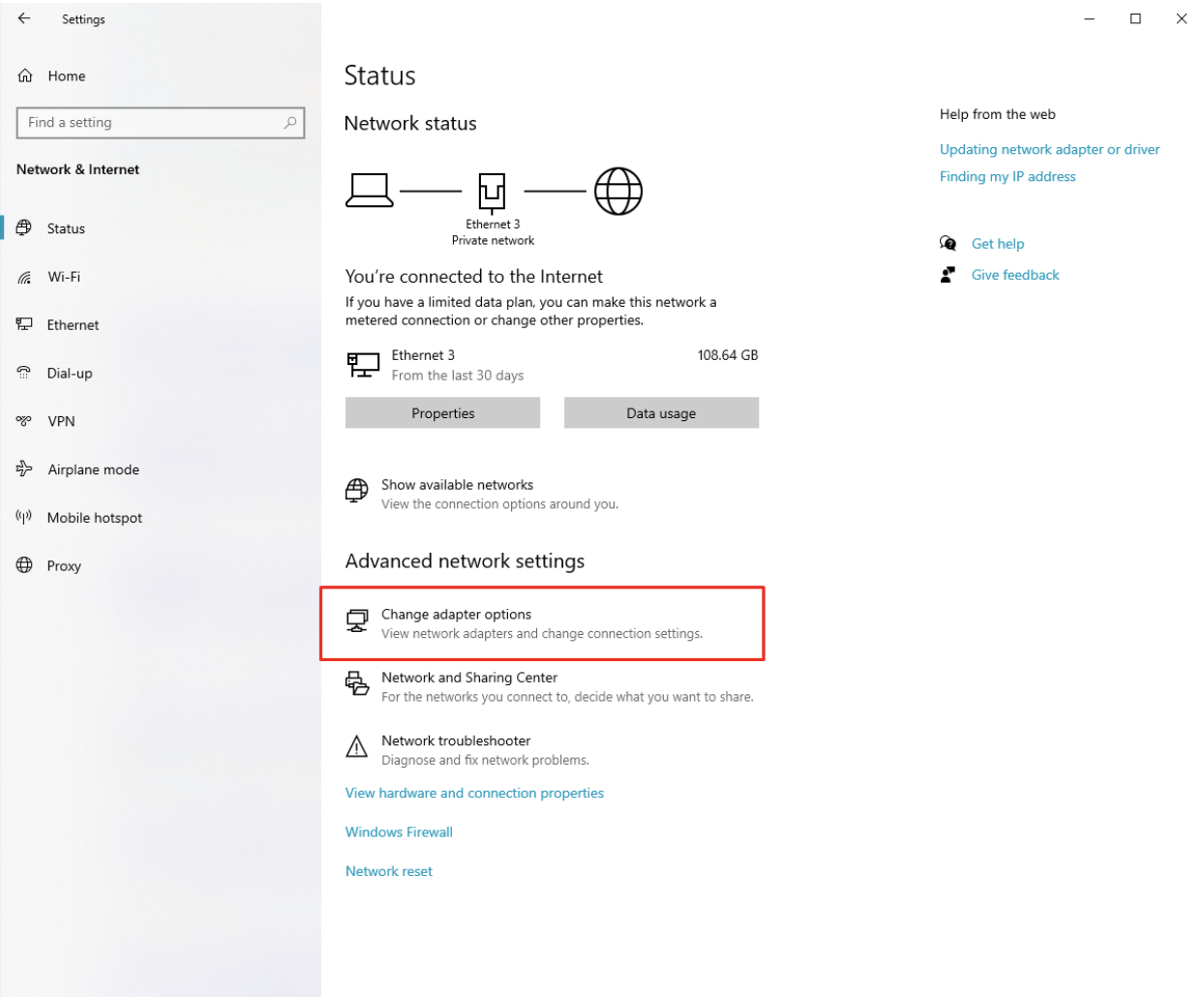
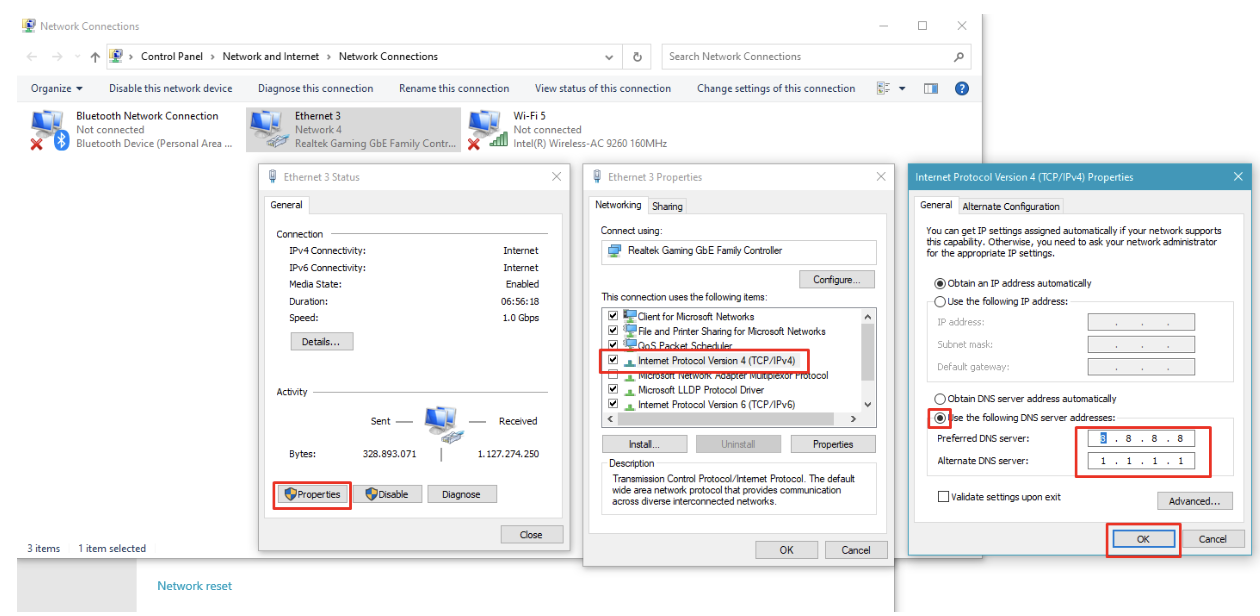
- Double-click the network you want to change. Select Properties, double-click Internet Protocol Version 4 (TCP/IPv4), then choose Use the following DNS server addresses. Type your preferred and alternate DNS servers and click OK.
- To clear old results, open Command Prompt as administrator and run
ipconfig /flushdns. Restart if sites still load from the old settings.
Change DNS on macOS
- Open the Apple menu, choose System Settings, and click Network.
- Select your network service (Wi-Fi or Ethernet) and click Details, then click DNS.
- Click the Add button under the DNS Servers list and enter an IPv4 or IPv6 address from your chosen provider.
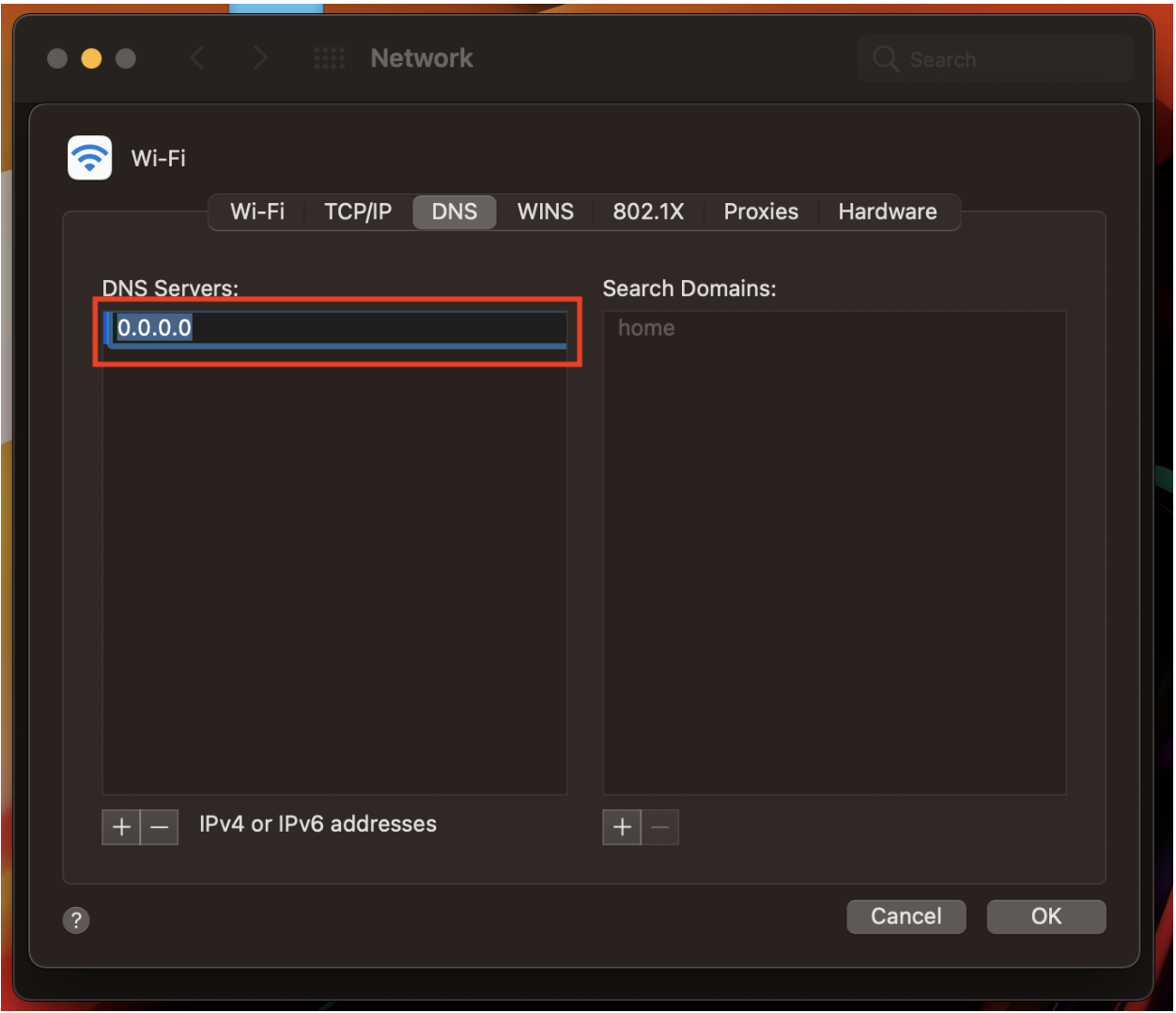
On older versions of macOS, the path is System Preferences, Network, Advanced, then the DNS tab, as shown below.
Change DNS on iPhone
- Go to Settings and tap Wi-Fi, then tap the info icon next to your network.
- Scroll to Configure DNS and tap Manual.
- Tap Add Server and enter the DNS addresses. Remove the existing servers if you want to use only the new ones, then tap Save.
The change applies only to that Wi-Fi network, not to cellular data or other networks.
Frequently Asked Questions
What does DNS do?
DNS translates domain names into IP addresses so browsers can find the server that hosts a website. It also tells the internet where to deliver email for a domain.
What are the most important DNS records?
A and AAAA records point your domain to your web server, a CNAME points one name at another, MX records route email, TXT records hold verification and email security settings, and NS records name your nameservers.
How long does DNS propagation take?
Record changes often take minutes to a few hours, and nameserver changes can take 24 to 48 hours. A lower TTL before the change shortens the wait.
How do I change nameservers?
Log in to your domain registrar, open the domain’s nameserver or DNS settings, replace the old nameservers with the ones your new host gave you, and save. Recreate your DNS records at the new host first so your site and email keep working.
What is the difference between a nameserver and a DNS record?
A nameserver is the server that holds and answers for your domain’s DNS records. A DNS record is a single entry stored on it, such as the A record that points to your web server.
Does changing my DNS make my internet faster?
It can make page lookups a little faster on some networks, but the gain is usually small, often just milliseconds. Benchmark providers in your region before you switch.
The Bottom Line
DNS is the lookup system that connects your domain name to your website and email. Learn the common record types, lower the TTL before a move, check the records at your new host before you change nameservers, and allow up to 48 hours for the change to settle. Setting up business email on your domain? Follow our email hosting setup guide, or see our best email providers comparison. Still choosing a host? Start with the top ten list.